Notifications
Introduction
In addition to support for sending email, Laravel provides support for sending notifications across a variety of delivery channels, including email, SMS (via Vonage, formerly known as Nexmo), and Slack. In addition, a variety of community built notification channels have been created to send notifications over dozens of different channels! Notifications may also be stored in a database so they may be displayed in your web interface.
Typically, notifications should be short, informational messages that notify users of something that occurred in your application. For example, if you are writing a billing application, you might send an "Invoice Paid" notification to your users via the email and SMS channels.
Generating Notifications
In Laravel, each notification is represented by a single class that is typically stored in the app/Notifications directory. Don't worry if you don't see this directory in your application - it will be created for you when you run the make:notification Artisan command:
php artisan make:notification InvoicePaid
This command will place a fresh notification class in your app/Notifications directory. Each notification class contains a via method and a variable number of message building methods, such as toMail or toDatabase, that convert the notification to a message tailored for that particular channel.
Sending Notifications
Using the Notifiable Trait
Notifications may be sent in two ways: using the notify method of the Notifiable trait or using the Notification facade. The Notifiable trait is included on your application's App\Models\User model by default:
<?php

namespace App\Models;

use Illuminate\Foundation\Auth\User as Authenticatable;
use Illuminate\Notifications\Notifiable;

class User extends Authenticatable
{
    use Notifiable;
}
The notify method that is provided by this trait expects to receive a notification instance:
use App\Notifications\InvoicePaid;

$user->notify(new InvoicePaid($invoice));
Remember, you may use the Notifiable trait on any of your models. You are not limited to only including it on your User model.
Using the Notification Facade
Alternatively, you may send notifications via the Notification facade. This approach is useful when you need to send a notification to multiple notifiable entities such as a collection of users. To send notifications using the facade, pass all of the notifiable entities and the notification instance to the send method:
use Illuminate\Support\Facades\Notification;

Notification::send($users, new InvoicePaid($invoice));
You can also send notifications immediately using the sendNow method. This method will send the notification immediately even if the notification implements the ShouldQueue interface:
Notification::sendNow($developers, new DeploymentCompleted($deployment));
Specifying Delivery Channels
Every notification class has a via method that determines on which channels the notification will be delivered. Notifications may be sent on the mail, database, broadcast, vonage, and slack channels.
If you would like to use other delivery channels such as Telegram or Pusher, check out the community driven Laravel Notification Channels website.
The via method receives a $notifiable instance, which will be an instance of the class to which the notification is being sent. You may use $notifiable to determine which channels the notification should be delivered on:
/**
 * Get the notification's delivery channels.
 *
 * @return array<int, string>
 */
public function via(object $notifiable): array
{
    return $notifiable->prefers_sms ? ['vonage'] : ['mail', 'database'];
}
Queueing Notifications
Before queueing notifications you should configure your queue and start a worker.
Sending notifications can take time, especially if the channel needs to make an external API call to deliver the notification. To speed up your application's response time, let your notification be queued by adding the ShouldQueue interface and Queueable trait to your class. The interface and trait are already imported for all notifications generated using the make:notification command, so you may immediately add them to your notification class:
<?php

namespace App\Notifications;

use Illuminate\Bus\Queueable;
use Illuminate\Contracts\Queue\ShouldQueue;
use Illuminate\Notifications\Notification;

class InvoicePaid extends Notification implements ShouldQueue
{
    use Queueable;

    // ...
}
Once the ShouldQueue interface has been added to your notification, you may send the notification like normal. Laravel will detect the ShouldQueue interface on the class and automatically queue the delivery of the notification:
$user->notify(new InvoicePaid($invoice));
When queueing notifications, a queued job will be created for each recipient and channel combination. For example, six jobs will be dispatched to the queue if your notification has three recipients and two channels.
Delaying Notifications
If you would like to delay the delivery of the notification, you may chain the delay method onto your notification instantiation:
$delay = now()->addMinutes(10);

$user->notify((new InvoicePaid($invoice))->delay($delay));
You may pass an array to the delay method to specify the delay amount for specific channels:
$user->notify((new InvoicePaid($invoice))->delay([
    'mail' => now()->addMinutes(5),
    'sms' => now()->addMinutes(10),
]));
Alternatively, you may define a withDelay method on the notification class itself. The withDelay method should return an array of channel names and delay values:
/**
 * Determine the notification's delivery delay.
 *
 * @return array<string, \Illuminate\Support\Carbon>
 */
public function withDelay(object $notifiable): array
{
    return [
        'mail' => now()->addMinutes(5),
        'sms' => now()->addMinutes(10),
    ];
}
Customizing the Notification Queue Connection
By default, queued notifications will be queued using your application's default queue connection. If you would like to specify a different connection that should be used for a particular notification, you may call the onConnection method from your notification's constructor:
<?php

namespace App\Notifications;

use Illuminate\Bus\Queueable;
use Illuminate\Contracts\Queue\ShouldQueue;
use Illuminate\Notifications\Notification;

class InvoicePaid extends Notification implements ShouldQueue
{
    use Queueable;

    /**
     * Create a new notification instance.
     */
    public function __construct()
    {
        $this->onConnection('redis');
    }
}
Or, if you would like to specify a specific queue connection that should be used for each notification channel supported by the notification, you may define a viaConnections method on your notification. This method should return an array of channel name / queue connection name pairs:
/**
 * Determine which connections should be used for each notification channel.
 *
 * @return array<string, string>
 */
public function viaConnections(): array
{
    return [
        'mail' => 'redis',
        'database' => 'sync',
    ];
}
Customizing Notification Channel Queues
If you would like to specify a specific queue that should be used for each notification channel supported by the notification, you may define a viaQueues method on your notification. This method should return an array of channel name / queue name pairs:
/**
 * Determine which queues should be used for each notification channel.
 *
 * @return array<string, string>
 */
public function viaQueues(): array
{
    return [
        'mail' => 'mail-queue',
        'slack' => 'slack-queue',
    ];
}
Queued Notification Middleware
Queued notifications may define middleware just like queued jobs. To get started, define a middleware method on your notification class. The middleware method will receive $notifiable and $channel variables, which allow you to customize the returned middleware based on the notification's destination:
use Illuminate\Queue\Middleware\RateLimited;

/**
 * Get the middleware the notification job should pass through.
 *
 * @return array<int, object>
 */
public function middleware(object $notifiable, string $channel)
{
    return match ($channel) {
        'email' => [new RateLimited('postmark')],
        'slack' => [new RateLimited('slack')],
        default => [],
    };
}
Queued Notifications and Database Transactions
When queued notifications are dispatched within database transactions, they may be processed by the queue before the database transaction has committed. When this happens, any updates you have made to models or database records during the database transaction may not yet be reflected in the database. In addition, any models or database records created within the transaction may not exist in the database. If your notification depends on these models, unexpected errors can occur when the job that sends the queued notification is processed.
If your queue connection's after_commit configuration option is set to false, you may still indicate that a particular queued notification should be dispatched after all open database transactions have been committed by calling the afterCommit method when sending the notification:
use App\Notifications\InvoicePaid;

$user->notify((new InvoicePaid($invoice))->afterCommit());
Alternatively, you may call the afterCommit method from your notification's constructor:
<?php

namespace App\Notifications;

use Illuminate\Bus\Queueable;
use Illuminate\Contracts\Queue\ShouldQueue;
use Illuminate\Notifications\Notification;

class InvoicePaid extends Notification implements ShouldQueue
{
    use Queueable;

    /**
     * Create a new notification instance.
     */
    public function __construct()
    {
        $this->afterCommit();
    }
}
To learn more about working around these issues, please review the documentation regarding queued jobs and database transactions.
Determining if a Queued Notification Should Be Sent
After a queued notification has been dispatched for the queue for background processing, it will typically be accepted by a queue worker and sent to its intended recipient.
However, if you would like to make the final determination on whether the queued notification should be sent after it is being processed by a queue worker, you may define a shouldSend method on the notification class. If this method returns false, the notification will not be sent:
/**
 * Determine if the notification should be sent.
 */
public function shouldSend(object $notifiable, string $channel): bool
{
    return $this->invoice->isPaid();
}
On-Demand Notifications
Sometimes you may need to send a notification to someone who is not stored as a "user" of your application. Using the Notification facade's route method, you may specify ad-hoc notification routing information before sending the notification:
use Illuminate\Broadcasting\Channel;
use Illuminate\Support\Facades\Notification;

Notification::route('mail', 'taylor@example.com')
    ->route('vonage', '5555555555')
    ->route('slack', '#slack-channel')
    ->route('broadcast', [new Channel('channel-name')])
    ->notify(new InvoicePaid($invoice));
If you would like to provide the recipient's name when sending an on-demand notification to the mail route, you may provide an array that contains the email address as the key and the name as the value of the first element in the array:
Notification::route('mail', [
    'barrett@example.com' => 'Barrett Blair',
])->notify(new InvoicePaid($invoice));
Using the routes method, you may provide ad-hoc routing information for multiple notification channels at once:
Notification::routes([
    'mail' => ['barrett@example.com' => 'Barrett Blair'],
    'vonage' => '5555555555',
])->notify(new InvoicePaid($invoice));
Mail Notifications
Formatting Mail Messages
If a notification supports being sent as an email, you should define a toMail method on the notification class. This method will receive a $notifiable entity and should return an Illuminate\Notifications\Messages\MailMessage instance.
The MailMessage class contains a few simple methods to help you build transactional email messages. Mail messages may contain lines of text as well as a "call to action". Let's take a look at an example toMail method:
/**
 * Get the mail representation of the notification.
 */
public function toMail(object $notifiable): MailMessage
{
    $url = url('/invoice/'.$this->invoice->id);

    return (new MailMessage)
        ->greeting('Hello!')
        ->line('One of your invoices has been paid!')
        ->lineIf($this->amount > 0, "Amount paid: {$this->amount}")
        ->action('View Invoice', $url)
        ->line('Thank you for using our application!');
}
Note we are using $this->invoice->id in our toMail method. You may pass any data your notification needs to generate its message into the notification's constructor.
In this example, we register a greeting, a line of text, a call to action, and then another line of text. These methods provided by the MailMessage object make it simple and fast to format small transactional emails. The mail channel will then translate the message components into a beautiful, responsive HTML email template with a plain-text counterpart. Here is an example of an email generated by the mail channel:
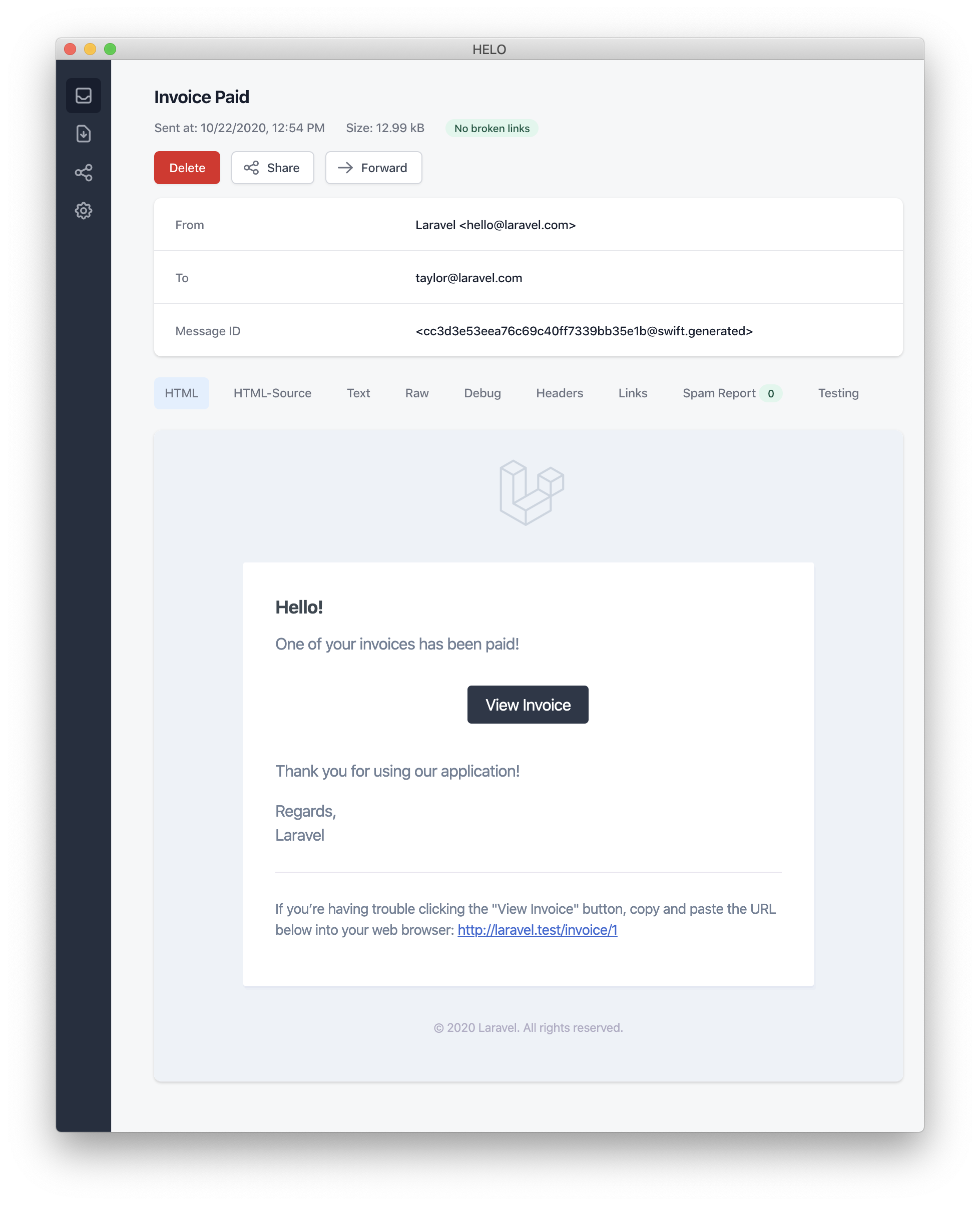
When sending mail notifications, be sure to set the name configuration option in your config/app.php configuration file. This value will be used in the header and footer of your mail notification messages.
Error Messages
Some notifications inform users of errors, such as a failed invoice payment. You may indicate that a mail message is regarding an error by calling the error method when building your message. When using the error method on a mail message, the call to action button will be red instead of black:
/**
 * Get the mail representation of the notification.
 */
public function toMail(object $notifiable): MailMessage
{
    return (new MailMessage)
        ->error()
        ->subject('Invoice Payment Failed')
        ->line('...');
}
Other Mail Notification Formatting Options
Instead of defining the "lines" of text in the notification class, you may use the view method to specify a custom template that should be used to render the notification email:
/**
 * Get the mail representation of the notification.
 */
public function toMail(object $notifiable): MailMessage
{
    return (new MailMessage)->view(
        'mail.invoice.paid', ['invoice' => $this->invoice]
    );
}
You may specify a plain-text view for the mail message by passing the view name as the second element of an array that is given to the view method:
/**
 * Get the mail representation of the notification.
 */
public function toMail(object $notifiable): MailMessage
{
    return (new MailMessage)->view(
        ['mail.invoice.paid', 'mail.invoice.paid-text'],
        ['invoice' => $this->invoice]
    );
}
Or, if your message only has a plain-text view, you may utilize the text method:
/**
 * Get the mail representation of the notification.
 */
public function toMail(object $notifiable): MailMessage
{
    return (new MailMessage)->text(
        'mail.invoice.paid-text', ['invoice' => $this->invoice]
    );
}
Customizing the Sender
By default, the email's sender / from address is defined in the config/mail.php configuration file. However, you may specify the from address for a specific notification using the from method:
/**
 * Get the mail representation of the notification.
 */
public function toMail(object $notifiable): MailMessage
{
    return (new MailMessage)
        ->from('barrett@example.com', 'Barrett Blair')
        ->line('...');
}
Customizing the Recipient
When sending notifications via the mail channel, the notification system will automatically look for an email property on your notifiable entity. You may customize which email address is used to deliver the notification by defining a routeNotificationForMail method on the notifiable entity:
<?php

namespace App\Models;

use Illuminate\Foundation\Auth\User as Authenticatable;
use Illuminate\Notifications\Notifiable;
use Illuminate\Notifications\Notification;

class User extends Authenticatable
{
    use Notifiable;

    /**
     * Route notifications for the mail channel.
     *
     * @return  array<string, string>|string
     */
    public function routeNotificationForMail(Notification $notification): array|string
    {
        // Return email address only...
        return $this->email_address;

        // Return email address and name...
        return [$this->email_address => $this->name];
    }
}
Customizing the Subject
By default, the email's subject is the class name of the notification formatted to "Title Case". So, if your notification class is named InvoicePaid, the email's subject will be Invoice Paid. If you would like to specify a different subject for the message, you may call the subject method when building your message:
/**
 * Get the mail representation of the notification.
 */
public function toMail(object $notifiable): MailMessage
{
    return (new MailMessage)
        ->subject('Notification Subject')
        ->line('...');
}
Customizing the Mailer
By default, the email notification will be sent using the default mailer defined in the config/mail.php configuration file. However, you may specify a different mailer at runtime by calling the mailer method when building your message:
/**
 * Get the mail representation of the notification.
 */
public function toMail(object $notifiable): MailMessage
{
    return (new MailMessage)
        ->mailer('postmark')
        ->line('...');
}
Customizing the Templates
You can modify the HTML and plain-text template used by mail notifications by publishing the notification package's resources. After running this command, the mail notification templates will be located in the resources/views/vendor/notifications directory:
php artisan vendor:publish --tag=laravel-notifications
Attachments
To add attachments to an email notification, use the attach method while building your message. The attach method accepts the absolute path to the file as its first argument:
/**
 * Get the mail representation of the notification.
 */
public function toMail(object $notifiable): MailMessage
{
    return (new MailMessage)
        ->greeting('Hello!')
        ->attach('/path/to/file');
}
The attach method offered by notification mail messages also accepts attachable objects. Please consult the comprehensive attachable object documentation to learn more.
When attaching files to a message, you may also specify the display name and / or MIME type by passing an array as the second argument to the attach method:
/**
 * Get the mail representation of the notification.
 */
public function toMail(object $notifiable): MailMessage
{
    return (new MailMessage)
        ->greeting('Hello!')
        ->attach('/path/to/file', [
            'as' => 'name.pdf',
            'mime' => 'application/pdf',
        ]);
}
Unlike attaching files in mailable objects, you may not attach a file directly from a storage disk using attachFromStorage. You should rather use the attach method with an absolute path to the file on the storage disk. Alternatively, you could return a mailable from the toMail method:
use App\Mail\InvoicePaid as InvoicePaidMailable;

/**
 * Get the mail representation of the notification.
 */
public function toMail(object $notifiable): Mailable
{
    return (new InvoicePaidMailable($this->invoice))
        ->to($notifiable->email)
        ->attachFromStorage('/path/to/file');
}
When necessary, multiple files may be attached to a message using the attachMany method:
/**
 * Get the mail representation of the notification.
 */
public function toMail(object $notifiable): MailMessage
{
    return (new MailMessage)
        ->greeting('Hello!')
        ->attachMany([
            '/path/to/forge.svg',
            '/path/to/vapor.svg' => [
                'as' => 'Logo.svg',
                'mime' => 'image/svg+xml',
            ],
        ]);
}
Raw Data Attachments
The attachData method may be used to attach a raw string of bytes as an attachment. When calling the attachData method, you should provide the filename that should be assigned to the attachment:
/**
 * Get the mail representation of the notification.
 */
public function toMail(object $notifiable): MailMessage
{
    return (new MailMessage)
        ->greeting('Hello!')
        ->attachData($this->pdf, 'name.pdf', [
            'mime' => 'application/pdf',
        ]);
}
Adding Tags and Metadata
Some third-party email providers such as Mailgun and Postmark support message "tags" and "metadata", which may be used to group and track emails sent by your application. You may add tags and metadata to an email message via the tag and metadata methods:
/**
 * Get the mail representation of the notification.
 */
public function toMail(object $notifiable): MailMessage
{
    return (new MailMessage)
        ->greeting('Comment Upvoted!')
        ->tag('upvote')
        ->metadata('comment_id', $this->comment->id);
}
If your application is using the Mailgun driver, you may consult Mailgun's documentation for more information on tags and metadata. Likewise, the Postmark documentation may also be consulted for more information on their support for tags and metadata.
If your application is using Amazon SES to send emails, you should use the metadata method to attach SES "tags" to the message.
Customizing the Symfony Message
The withSymfonyMessage method of the MailMessage class allows you to register a closure which will be invoked with the Symfony Message instance before sending the message. This gives you an opportunity to deeply customize the message before it is delivered:
use Symfony\Component\Mime\Email;

/**
 * Get the mail representation of the notification.
 */
public function toMail(object $notifiable): MailMessage
{
    return (new MailMessage)
        ->withSymfonyMessage(function (Email $message) {
            $message->getHeaders()->addTextHeader(
                'Custom-Header', 'Header Value'
            );
        });
}
Using Mailables
If needed, you may return a full mailable object from your notification's toMail method. When returning a Mailable instead of a MailMessage, you will need to specify the message recipient using the mailable object's to method:
use App\Mail\InvoicePaid as InvoicePaidMailable;
use Illuminate\Mail\Mailable;

/**
 * Get the mail representation of the notification.
 */
public function toMail(object $notifiable): Mailable
{
    return (new InvoicePaidMailable($this->invoice))
        ->to($notifiable->email);
}
Mailables and On-Demand Notifications
If you are sending an on-demand notification, the $notifiable instance given to the toMail method will be an instance of Illuminate\Notifications\AnonymousNotifiable, which offers a routeNotificationFor method that may be used to retrieve the email address the on-demand notification should be sent to:
use App\Mail\InvoicePaid as InvoicePaidMailable;
use Illuminate\Notifications\AnonymousNotifiable;
use Illuminate\Mail\Mailable;

/**
 * Get the mail representation of the notification.
 */
public function toMail(object $notifiable): Mailable
{
    $address = $notifiable instanceof AnonymousNotifiable
        ? $notifiable->routeNotificationFor('mail')
        : $notifiable->email;

    return (new InvoicePaidMailable($this->invoice))
        ->to($address);
}
Previewing Mail Notifications
When designing a mail notification template, it is convenient to quickly preview the rendered mail message in your browser like a typical Blade template. For this reason, Laravel allows you to return any mail message generated by a mail notification directly from a route closure or controller. When a MailMessage is returned, it will be rendered and displayed in the browser, allowing you to quickly preview its design without needing to send it to an actual email address:
use App\Models\Invoice;
use App\Notifications\InvoicePaid;

Route::get('/notification', function () {
    $invoice = Invoice::find(1);

    return (new InvoicePaid($invoice))
        ->toMail($invoice->user);
});
Markdown Mail Notifications
Markdown mail notifications allow you to take advantage of the pre-built templates of mail notifications, while giving you more freedom to write longer, customized messages. Since the messages are written in Markdown, Laravel is able to render beautiful, responsive HTML templates for the messages while also automatically generating a plain-text counterpart.
Generating the Message
To generate a notification with a corresponding Markdown template, you may use the --markdown option of the make:notification Artisan command:
php artisan make:notification InvoicePaid --markdown=mail.invoice.paid
Like all other mail notifications, notifications that use Markdown templates should define a toMail method on their notification class. However, instead of using the line and action methods to construct the notification, use the markdown method to specify the name of the Markdown template that should be used. An array of data you wish to make available to the template may be passed as the method's second argument:
/**
 * Get the mail representation of the notification.
 */
public function toMail(object $notifiable): MailMessage
{
    $url = url('/invoice/'.$this->invoice->id);

    return (new MailMessage)
        ->subject('Invoice Paid')
        ->markdown('mail.invoice.paid', ['url' => $url]);
}
Writing the Message
Markdown mail notifications use a combination of Blade components and Markdown syntax which allow you to easily construct notifications while leveraging Laravel's pre-crafted notification components:
<x-mail::message>
# Invoice Paid

Your invoice has been paid!

<x-mail::button :url="$url">
View Invoice
</x-mail::button>

Thanks,<br>
{{ config('app.name') }}
</x-mail::message>
Button Component
The button component renders a centered button link. The component accepts two arguments, a url and an optional color. Supported colors are primary, green, and red. You may add as many button components to a notification as you wish:
<x-mail::button :url="$url" color="green">
View Invoice
</x-mail::button>
Panel Component
The panel component renders the given block of text in a panel that has a slightly different background color than the rest of the notification. This allows you to draw attention to a given block of text:
<x-mail::panel>
This is the panel content.
</x-mail::panel>
Table Component
The table component allows you to transform a Markdown table into an HTML table. The component accepts the Markdown table as its content. Table column alignment is supported using the default Markdown table alignment syntax:
<x-mail::table>
| Laravel       | Table         | Example       |
| ------------- | :-----------: | ------------: |
| Col 2 is      | Centered      | $10           |
| Col 3 is      | Right-Aligned | $20           |
</x-mail::table>
Customizing the Components
You may export all of the Markdown notification components to your own application for customization. To export the components, use the vendor:publish Artisan command to publish the laravel-mail asset tag:
php artisan vendor:publish --tag=laravel-mail
This command will publish the Markdown mail components to the resources/views/vendor/mail directory. The mail directory will contain an html and a text directory, each containing their respective representations of every available component. You are free to customize these components however you like.
Customizing the CSS
After exporting the components, the resources/views/vendor/mail/html/themes directory will contain a default.css file. You may customize the CSS in this file and your styles will automatically be in-lined within the HTML representations of your Markdown notifications.
If you would like to build an entirely new theme for Laravel's Markdown components, you may place a CSS file within the html/themes directory. After naming and saving your CSS file, update the theme option of the mail configuration file to match the name of your new theme.
To customize the theme for an individual notification, you may call the theme method while building the notification's mail message. The theme method accepts the name of the theme that should be used when sending the notification:
/**
 * Get the mail representation of the notification.
 */
public function toMail(object $notifiable): MailMessage
{
    return (new MailMessage)
        ->theme('invoice')
        ->subject('Invoice Paid')
        ->markdown('mail.invoice.paid', ['url' => $url]);
}
Database Notifications
Prerequisites
The database notification channel stores the notification information in a database table. This table will contain information such as the notification type as well as a JSON data structure that describes the notification.
You can query the table to display the notifications in your application's user interface. But, before you can do that, you will need to create a database table to hold your notifications. You may use the make:notifications-table command to generate a migration with the proper table schema:
php artisan make:notifications-table

php artisan migrate
If your notifiable models are using UUID or ULID primary keys, you should replace the morphs method with uuidMorphs or ulidMorphs in the notification table migration.
Formatting Database Notifications
If a notification supports being stored in a database table, you should define a toDatabase or toArray method on the notification class. This method will receive a $notifiable entity and should return a plain PHP array. The returned array will be encoded as JSON and stored in the data column of your notifications table. Let's take a look at an example toArray method:
/**
 * Get the array representation of the notification.
 *
 * @return array<string, mixed>
 */
public function toArray(object $notifiable): array
{
    return [
        'invoice_id' => $this->invoice->id,
        'amount' => $this->invoice->amount,
    ];
}
When a notification is stored in your application's database, the type column will be set to the notification's class name by default, and the read_at column will be null. However, you can customize this behavior by defining the databaseType and initialDatabaseReadAtValue methods in your notification class:
use Illuminate\Support\Carbon;

/**
 * Get the notification's database type.
 */
public function databaseType(object $notifiable): string
{
    return 'invoice-paid';
}

/**
 * Get the initial value for the "read_at" column.
 */
public function initialDatabaseReadAtValue(): ?Carbon
{
    return null;
}
toDatabase vs. toArray
The toArray method is also used by the broadcast channel to determine which data to broadcast to your JavaScript powered frontend. If you would like to have two different array representations for the database and broadcast channels, you should define a toDatabase method instead of a toArray method.
Accessing the Notifications
Once notifications are stored in the database, you need a convenient way to access them from your notifiable entities. The Illuminate\Notifications\Notifiable trait, which is included on Laravel's default App\Models\User model, includes a notifications Eloquent relationship that returns the notifications for the entity. To fetch notifications, you may access this method like any other Eloquent relationship. By default, notifications will be sorted by the created_at timestamp with the most recent notifications at the beginning of the collection:
$user = App\Models\User::find(1);

foreach ($user->notifications as $notification) {
    echo $notification->type;
}
If you want to retrieve only the "unread" notifications, you may use the unreadNotifications relationship. Again, these notifications will be sorted by the created_at timestamp with the most recent notifications at the beginning of the collection:
$user = App\Models\User::find(1);

foreach ($user->unreadNotifications as $notification) {
    echo $notification->type;
}
To access your notifications from your JavaScript client, you should define a notification controller for your application which returns the notifications for a notifiable entity, such as the current user. You may then make an HTTP request to that controller's URL from your JavaScript client.
Marking Notifications as Read
Typically, you will want to mark a notification as "read" when a user views it. The Illuminate\Notifications\Notifiable trait provides a markAsRead method, which updates the read_at column on the notification's database record:
$user = App\Models\User::find(1);

foreach ($user->unreadNotifications as $notification) {
    $notification->markAsRead();
}
However, instead of looping through each notification, you may use the markAsRead method directly on a collection of notifications:
$user->unreadNotifications->markAsRead();
You may also use a mass-update query to mark all of the notifications as read without retrieving them from the database:
$user = App\Models\User::find(1);

$user->unreadNotifications()->update(['read_at' => now()]);
You may delete the notifications to remove them from the table entirely:
$user->notifications()->delete();
Broadcast Notifications
Prerequisites
Before broadcasting notifications, you should configure and be familiar with Laravel's event broadcasting services. Event broadcasting provides a way to react to server-side Laravel events from your JavaScript powered frontend.
Formatting Broadcast Notifications
The broadcast channel broadcasts notifications using Laravel's event broadcasting services, allowing your JavaScript powered frontend to catch notifications in realtime. If a notification supports broadcasting, you can define a toBroadcast method on the notification class. This method will receive a $notifiable entity and should return a BroadcastMessage instance. If the toBroadcast method does not exist, the toArray method will be used to gather the data that should be broadcast. The returned data will be encoded as JSON and broadcast to your JavaScript powered frontend. Let's take a look at an example toBroadcast method:
use Illuminate\Notifications\Messages\BroadcastMessage;

/**
 * Get the broadcastable representation of the notification.
 */
public function toBroadcast(object $notifiable): BroadcastMessage
{
    return new BroadcastMessage([
        'invoice_id' => $this->invoice->id,
        'amount' => $this->invoice->amount,
    ]);
}
Broadcast Queue Configuration
All broadcast notifications are queued for broadcasting. If you would like to configure the queue connection or queue name that is used to queue the broadcast operation, you may use the onConnection and onQueue methods of the BroadcastMessage:
return (new BroadcastMessage($data))
    ->onConnection('sqs')
    ->onQueue('broadcasts');
Customizing the Notification Type
In addition to the data you specify, all broadcast notifications also have a type field containing the full class name of the notification. If you would like to customize the notification type, you may define a broadcastType method on the notification class:
/**
 * Get the type of the notification being broadcast.
 */
public function broadcastType(): string
{
    return 'broadcast.message';
}
Listening for Notifications
Notifications will broadcast on a private channel formatted using a {notifiable}.{id} convention. So, if you are sending a notification to an App\Models\User instance with an ID of 1, the notification will be broadcast on the App.Models.User.1 private channel. When using Laravel Echo, you may easily listen for notifications on a channel using the notification method:
Echo.private('App.Models.User.' + userId)
    .notification((notification) => {
        console.log(notification.type);
    });
Customizing the Notification Channel
If you would like to customize which channel that an entity's broadcast notifications are broadcast on, you may define a receivesBroadcastNotificationsOn method on the notifiable entity:
<?php

namespace App\Models;

use Illuminate\Broadcasting\PrivateChannel;
use Illuminate\Foundation\Auth\User as Authenticatable;
use Illuminate\Notifications\Notifiable;

class User extends Authenticatable
{
    use Notifiable;

    /**
     * The channels the user receives notification broadcasts on.
     */
    public function receivesBroadcastNotificationsOn(): string
    {
        return 'users.'.$this->id;
    }
}
SMS Notifications
Prerequisites
Sending SMS notifications in Laravel is powered by Vonage (formerly known as Nexmo). Before you can send notifications via Vonage, you need to install the laravel/vonage-notification-channel and guzzlehttp/guzzle packages:
composer require laravel/vonage-notification-channel guzzlehttp/guzzle
The package includes a configuration file. However, you are not required to export this configuration file to your own application. You can simply use the VONAGE_KEY and VONAGE_SECRET environment variables to define your Vonage public and secret keys.
After defining your keys, you should set a VONAGE_SMS_FROM environment variable that defines the phone number that your SMS messages should be sent from by default. You may generate this phone number within the Vonage control panel:
VONAGE_SMS_FROM=15556666666
Formatting SMS Notifications
If a notification supports being sent as an SMS, you should define a toVonage method on the notification class. This method will receive a $notifiable entity and should return an Illuminate\Notifications\Messages\VonageMessage instance:
use Illuminate\Notifications\Messages\VonageMessage;

/**
 * Get the Vonage / SMS representation of the notification.
 */
public function toVonage(object $notifiable): VonageMessage
{
    return (new VonageMessage)
        ->content('Your SMS message content');
}
Unicode Content
If your SMS message will contain unicode characters, you should call the unicode method when constructing the VonageMessage instance:
use Illuminate\Notifications\Messages\VonageMessage;

/**
 * Get the Vonage / SMS representation of the notification.
 */
public function toVonage(object $notifiable): VonageMessage
{
    return (new VonageMessage)
        ->content('Your unicode message')
        ->unicode();
}
Customizing the "From" Number
If you would like to send some notifications from a phone number that is different from the phone number specified by your VONAGE_SMS_FROM environment variable, you may call the from method on a VonageMessage instance:
use Illuminate\Notifications\Messages\VonageMessage;

/**
 * Get the Vonage / SMS representation of the notification.
 */
public function toVonage(object $notifiable): VonageMessage
{
    return (new VonageMessage)
        ->content('Your SMS message content')
        ->from('15554443333');
}
Adding a Client Reference
If you would like to keep track of costs per user, team, or client, you may add a "client reference" to the notification. Vonage will allow you to generate reports using this client reference so that you can better understand a particular customer's SMS usage. The client reference can be any string up to 40 characters:
use Illuminate\Notifications\Messages\VonageMessage;

/**
 * Get the Vonage / SMS representation of the notification.
 */
public function toVonage(object $notifiable): VonageMessage
{
    return (new VonageMessage)
        ->clientReference((string) $notifiable->id)
        ->content('Your SMS message content');
}
Routing SMS Notifications
To route Vonage notifications to the proper phone number, define a routeNotificationForVonage method on your notifiable entity:
<?php

namespace App\Models;

use Illuminate\Foundation\Auth\User as Authenticatable;
use Illuminate\Notifications\Notifiable;
use Illuminate\Notifications\Notification;

class User extends Authenticatable
{
    use Notifiable;

    /**
     * Route notifications for the Vonage channel.
     */
    public function routeNotificationForVonage(Notification $notification): string
    {
        return $this->phone_number;
    }
}
Slack Notifications
Prerequisites
Before sending Slack notifications, you should install the Slack notification channel via Composer:
composer require laravel/slack-notification-channel
Additionally, you must create a Slack App for your Slack workspace.
If you only need to send notifications to the same Slack workspace that the App is created in, you should ensure that your App has the chat:write, chat:write.public, and chat:write.customize scopes. If you want to send messages as your Slack App, you should ensure that your App also has the chat:write:bot scope. These scopes can be added from the "OAuth & Permissions" App management tab within Slack.
Next, copy the App's "Bot User OAuth Token" and place it within a slack configuration array in your application's services.php configuration file. This token can be found on the "OAuth & Permissions" tab within Slack:
'slack' => [
    'notifications' => [
        'bot_user_oauth_token' => env('SLACK_BOT_USER_OAUTH_TOKEN'),
        'channel' => env('SLACK_BOT_USER_DEFAULT_CHANNEL'),
    ],
],
App Distribution
If your application will be sending notifications to external Slack workspaces that are owned by your application's users, you will need to "distribute" your App via Slack. App distribution can be managed from your App's "Manage Distribution" tab within Slack. Once your App has been distributed, you may use Socialite to obtain Slack Bot tokens on behalf of your application's users.
Formatting Slack Notifications
If a notification supports being sent as a Slack message, you should define a toSlack method on the notification class. This method will receive a $notifiable entity and should return an Illuminate\Notifications\Slack\SlackMessage instance. You can construct rich notifications using Slack's Block Kit API. The following example may be previewed in Slack's Block Kit builder:
use Illuminate\Notifications\Slack\BlockKit\Blocks\ContextBlock;
use Illuminate\Notifications\Slack\BlockKit\Blocks\SectionBlock;
use Illuminate\Notifications\Slack\BlockKit\Composites\ConfirmObject;
use Illuminate\Notifications\Slack\SlackMessage;

/**
 * Get the Slack representation of the notification.
 */
public function toSlack(object $notifiable): SlackMessage
{
    return (new SlackMessage)
        ->text('One of your invoices has been paid!')
        ->headerBlock('Invoice Paid')
        ->contextBlock(function (ContextBlock $block) {
            $block->text('Customer #1234');
        })
        ->sectionBlock(function (SectionBlock $block) {
            $block->text('An invoice has been paid.');
            $block->field("*Invoice No:*\n1000")->markdown();
            $block->field("*Invoice Recipient:*\ntaylor@laravel.com")->markdown();
        })
        ->dividerBlock()
        ->sectionBlock(function (SectionBlock $block) {
            $block->text('Congratulations!');
        });
}
Using Slack's Block Kit Builder Template
Instead of using the fluent message builder methods to construct your Block Kit message, you may provide the raw JSON payload generated by Slack's Block Kit Builder to the usingBlockKitTemplate method:
use Illuminate\Notifications\Slack\SlackMessage;
use Illuminate\Support\Str;

/**
 * Get the Slack representation of the notification.
 */
public function toSlack(object $notifiable): SlackMessage
{
    $template = <<<JSON
        {
          "blocks": [
            {
              "type": "header",
              "text": {
                "type": "plain_text",
                "text": "Team Announcement"
              }
            },
            {
              "type": "section",
              "text": {
                "type": "plain_text",
                "text": "We are hiring!"
              }
            }
          ]
        }
    JSON;

    return (new SlackMessage)
        ->usingBlockKitTemplate($template);
}
Slack Interactivity
Slack's Block Kit notification system provides powerful features to handle user interaction. To utilize these features, your Slack App should have "Interactivity" enabled and a "Request URL" configured that points to a URL served by your application. These settings can be managed from the "Interactivity & Shortcuts" App management tab within Slack.
In the following example, which utilizes the actionsBlock method, Slack will send a POST request to your "Request URL" with a payload containing the Slack user who clicked the button, the ID of the clicked button, and more. Your application can then determine the action to take based on the payload. You should also verify the request was made by Slack:
use Illuminate\Notifications\Slack\BlockKit\Blocks\ActionsBlock;
use Illuminate\Notifications\Slack\BlockKit\Blocks\ContextBlock;
use Illuminate\Notifications\Slack\BlockKit\Blocks\SectionBlock;
use Illuminate\Notifications\Slack\SlackMessage;

/**
 * Get the Slack representation of the notification.
 */
public function toSlack(object $notifiable): SlackMessage
{
    return (new SlackMessage)
        ->text('One of your invoices has been paid!')
        ->headerBlock('Invoice Paid')
        ->contextBlock(function (ContextBlock $block) {
            $block->text('Customer #1234');
        })
        ->sectionBlock(function (SectionBlock $block) {
            $block->text('An invoice has been paid.');
        })
        ->actionsBlock(function (ActionsBlock $block) {
             // ID defaults to "button_acknowledge_invoice"...
            $block->button('Acknowledge Invoice')->primary();

            // Manually configure the ID...
            $block->button('Deny')->danger()->id('deny_invoice');
        });
}
Confirmation Modals
If you would like users to be required to confirm an action before it is performed, you may invoke the confirm method when defining your button. The confirm method accepts a message and a closure which receives a ConfirmObject instance:
use Illuminate\Notifications\Slack\BlockKit\Blocks\ActionsBlock;
use Illuminate\Notifications\Slack\BlockKit\Blocks\ContextBlock;
use Illuminate\Notifications\Slack\BlockKit\Blocks\SectionBlock;
use Illuminate\Notifications\Slack\BlockKit\Composites\ConfirmObject;
use Illuminate\Notifications\Slack\SlackMessage;

/**
 * Get the Slack representation of the notification.
 */
public function toSlack(object $notifiable): SlackMessage
{
    return (new SlackMessage)
        ->text('One of your invoices has been paid!')
        ->headerBlock('Invoice Paid')
        ->contextBlock(function (ContextBlock $block) {
            $block->text('Customer #1234');
        })
        ->sectionBlock(function (SectionBlock $block) {
            $block->text('An invoice has been paid.');
        })
        ->actionsBlock(function (ActionsBlock $block) {
            $block->button('Acknowledge Invoice')
                ->primary()
                ->confirm(
                    'Acknowledge the payment and send a thank you email?',
                    function (ConfirmObject $dialog) {
                        $dialog->confirm('Yes');
                        $dialog->deny('No');
                    }
                );
        });
}
Inspecting Slack Blocks
If you would like to quickly inspect the blocks you've been building, you can invoke the dd method on the SlackMessage instance. The dd method will generate and dump a URL to Slack's Block Kit Builder, which displays a preview of the payload and notification in your browser. You may pass true to the dd method to dump the raw payload:
return (new SlackMessage)
        ->text('One of your invoices has been paid!')
        ->headerBlock('Invoice Paid')
        ->dd();
Routing Slack Notifications
To direct Slack notifications to the appropriate Slack team and channel, define a routeNotificationForSlack method on your notifiable model. This method can return one of three values:
null- which defers routing to the channel configured in the notification itself. You may use thetomethod when building yourSlackMessageto configure the channel within the notification.- A string specifying the Slack channel to send the notification to, e.g.
#support-channel. - A
SlackRouteinstance, which allows you to specify an OAuth token and channel name, e.g.SlackRoute::make($this->slack_channel, $this->slack_token). This method should be used to send notifications to external workspaces.
For instance, returning #support-channel from the routeNotificationForSlack method will send the notification to the #support-channel channel in the workspace associated with the Bot User OAuth token located in your application's services.php configuration file:
<?php

namespace App\Models;

use Illuminate\Foundation\Auth\User as Authenticatable;
use Illuminate\Notifications\Notifiable;
use Illuminate\Notifications\Notification;

class User extends Authenticatable
{
    use Notifiable;

    /**
     * Route notifications for the Slack channel.
     */
    public function routeNotificationForSlack(Notification $notification): mixed
    {
        return '#support-channel';
    }
}
Notifying External Slack Workspaces
Before sending notifications to external Slack workspaces, your Slack App must be distributed.
Of course, you will often want to send notifications to the Slack workspaces owned by your application's users. To do so, you will first need to obtain a Slack OAuth token for the user. Thankfully, Laravel Socialite includes a Slack driver that will allow you to easily authenticate your application's users with Slack and obtain a bot token.
Once you have obtained the bot token and stored it within your application's database, you may utilize the SlackRoute::make method to route a notification to the user's workspace. In addition, your application will likely need to offer an opportunity for the user to specify which channel notifications should be sent to:
<?php

namespace App\Models;

use Illuminate\Foundation\Auth\User as Authenticatable;
use Illuminate\Notifications\Notifiable;
use Illuminate\Notifications\Notification;
use Illuminate\Notifications\Slack\SlackRoute;

class User extends Authenticatable
{
    use Notifiable;

    /**
     * Route notifications for the Slack channel.
     */
    public function routeNotificationForSlack(Notification $notification): mixed
    {
        return SlackRoute::make($this->slack_channel, $this->slack_token);
    }
}
Localizing Notifications
Laravel allows you to send notifications in a locale other than the HTTP request's current locale, and will even remember this locale if the notification is queued.
To accomplish this, the Illuminate\Notifications\Notification class offers a locale method to set the desired language. The application will change into this locale when the notification is being evaluated and then revert back to the previous locale when evaluation is complete:
$user->notify((new InvoicePaid($invoice))->locale('es'));
Localization of multiple notifiable entries may also be achieved via the Notification facade:
Notification::locale('es')->send(
    $users, new InvoicePaid($invoice)
);
User Preferred Locales
Sometimes, applications store each user's preferred locale. By implementing the HasLocalePreference contract on your notifiable model, you may instruct Laravel to use this stored locale when sending a notification:
use Illuminate\Contracts\Translation\HasLocalePreference;

class User extends Model implements HasLocalePreference
{
    /**
     * Get the user's preferred locale.
     */
    public function preferredLocale(): string
    {
        return $this->locale;
    }
}
Once you have implemented the interface, Laravel will automatically use the preferred locale when sending notifications and mailables to the model. Therefore, there is no need to call the locale method when using this interface:
$user->notify(new InvoicePaid($invoice));
Testing
You may use the Notification facade's fake method to prevent notifications from being sent. Typically, sending notifications is unrelated to the code you are actually testing. Most likely, it is sufficient to simply assert that Laravel was instructed to send a given notification.
After calling the Notification facade's fake method, you may then assert that notifications were instructed to be sent to users and even inspect the data the notifications received:
<?php

use App\Notifications\OrderShipped;
use Illuminate\Support\Facades\Notification;

test('orders can be shipped', function () {
    Notification::fake();

    // Perform order shipping...

    // Assert that no notifications were sent...
    Notification::assertNothingSent();

    // Assert a notification was sent to the given users...
    Notification::assertSentTo(
        [$user], OrderShipped::class
    );

    // Assert a notification was not sent...
    Notification::assertNotSentTo(
        [$user], AnotherNotification::class
    );

    // Assert that a given number of notifications were sent...
    Notification::assertCount(3);
});
<?php

namespace Tests\Feature;

use App\Notifications\OrderShipped;
use Illuminate\Support\Facades\Notification;
use Tests\TestCase;

class ExampleTest extends TestCase
{
    public function test_orders_can_be_shipped(): void
    {
        Notification::fake();

        // Perform order shipping...

        // Assert that no notifications were sent...
        Notification::assertNothingSent();

        // Assert a notification was sent to the given users...
        Notification::assertSentTo(
            [$user], OrderShipped::class
        );

        // Assert a notification was not sent...
        Notification::assertNotSentTo(
            [$user], AnotherNotification::class
        );

        // Assert that a given number of notifications were sent...
        Notification::assertCount(3);
    }
}
You may pass a closure to the assertSentTo or assertNotSentTo methods in order to assert that a notification was sent that passes a given "truth test". If at least one notification was sent that passes the given truth test then the assertion will be successful:
Notification::assertSentTo(
    $user,
    function (OrderShipped $notification, array $channels) use ($order) {
        return $notification->order->id === $order->id;
    }
);
On-Demand Notifications
If the code you are testing sends on-demand notifications, you can test that the on-demand notification was sent via the assertSentOnDemand method:
Notification::assertSentOnDemand(OrderShipped::class);
By passing a closure as the second argument to the assertSentOnDemand method, you may determine if an on-demand notification was sent to the correct "route" address:
Notification::assertSentOnDemand(
    OrderShipped::class,
    function (OrderShipped $notification, array $channels, object $notifiable) use ($user) {
        return $notifiable->routes['mail'] === $user->email;
    }
);
Notification Events
Notification Sending Event
When a notification is sending, the Illuminate\Notifications\Events\NotificationSending event is dispatched by the notification system. This contains the "notifiable" entity and the notification instance itself. You may create event listeners for this event within your application:
use Illuminate\Notifications\Events\NotificationSending;

class CheckNotificationStatus
{
    /**
     * Handle the given event.
     */
    public function handle(NotificationSending $event): void
    {
        // ...
    }
}
The notification will not be sent if an event listener for the NotificationSending event returns false from its handle method:
/**
 * Handle the given event.
 */
public function handle(NotificationSending $event): bool
{
    return false;
}
Within an event listener, you may access the notifiable, notification, and channel properties on the event to learn more about the notification recipient or the notification itself:
/**
 * Handle the given event.
 */
public function handle(NotificationSending $event): void
{
    // $event->channel
    // $event->notifiable
    // $event->notification
}
Notification Sent Event
When a notification is sent, the Illuminate\Notifications\Events\NotificationSent event is dispatched by the notification system. This contains the "notifiable" entity and the notification instance itself. You may create event listeners for this event within your application:
use Illuminate\Notifications\Events\NotificationSent;

class LogNotification
{
    /**
     * Handle the given event.
     */
    public function handle(NotificationSent $event): void
    {
        // ...
    }
}
Within an event listener, you may access the notifiable, notification, channel, and response properties on the event to learn more about the notification recipient or the notification itself:
/**
 * Handle the given event.
 */
public function handle(NotificationSent $event): void
{
    // $event->channel
    // $event->notifiable
    // $event->notification
    // $event->response
}
Custom Channels
Laravel ships with a handful of notification channels, but you may want to write your own drivers to deliver notifications via other channels. Laravel makes it simple. To get started, define a class that contains a send method. The method should receive two arguments: a $notifiable and a $notification.
Within the send method, you may call methods on the notification to retrieve a message object understood by your channel and then send the notification to the $notifiable instance however you wish:
<?php

namespace App\Notifications;

use Illuminate\Notifications\Notification;

class VoiceChannel
{
    /**
     * Send the given notification.
     */
    public function send(object $notifiable, Notification $notification): void
    {
        $message = $notification->toVoice($notifiable);

        // Send notification to the $notifiable instance...
    }
}
Once your notification channel class has been defined, you may return the class name from the via method of any of your notifications. In this example, the toVoice method of your notification can return whatever object you choose to represent voice messages. For example, you might define your own VoiceMessage class to represent these messages:
<?php

namespace App\Notifications;

use App\Notifications\Messages\VoiceMessage;
use App\Notifications\VoiceChannel;
use Illuminate\Bus\Queueable;
use Illuminate\Contracts\Queue\ShouldQueue;
use Illuminate\Notifications\Notification;

class InvoicePaid extends Notification
{
    use Queueable;

    /**
     * Get the notification channels.
     */
    public function via(object $notifiable): string
    {
        return VoiceChannel::class;
    }

    /**
     * Get the voice representation of the notification.
     */
    public function toVoice(object $notifiable): VoiceMessage
    {
        // ...
    }
}